The BidShakti app is on Google Play and the App Store. Daily matches and deadline alerts on your phone.Get the app
How it works

From tender notice to signed bid pack.

BidShakti takes a government tender through six steps: your profile, daily discovery, a full reading of the documents, a Go/No-Go verdict, competitor and price research, and a bid pack ready to upload.

STEP 01

Set your company profile once

You tell BidShakti what your company does and where it can work: your trade or sectors, the states you will bid in, your turnover, your licences and registrations. This takes a few minutes and you do it one time.

Then you fill the document vault. This is where your turnover certificate, audited financials, ITR, work orders, completion certificates, GST and PAN, MSME or startup certificates, licences and product certificates live. Everything that follows is checked against these documents, so the vault is the foundation of the whole product.

STEP 02

Daily discovery across GeM, CPPP and 18 state portals

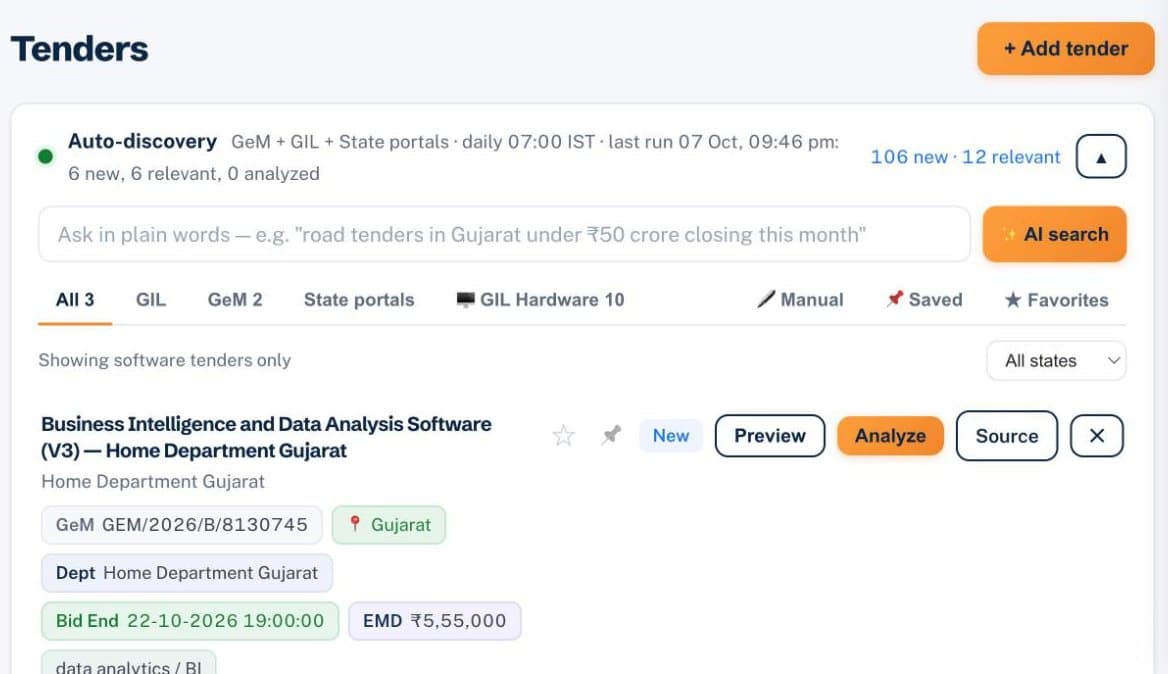
Every day BidShakti reads new tenders from GeM, CPPP and 18 state e-procurement portals and matches them to your profile. You do not open each portal or repeat the same keyword search.

Matched tenders appear in your portal workspace, in the 7 AM email digest, and as a push on the app (Android and iPhone). You start the day with a short list that already fits your company, with the closing date and estimated value beside each one.

The Tenders page of a BidShakti workspace, with the auto-discovery panel showing new and relevant matches from GeM, GIL and state portals
The Tenders page after the morning run: new matches, a plain-words search and the portal tabs.
STEP 03

Open a tender and let the analysis read everything

When you open a tender, the analysis reads the whole tender document set, not just the notice. On GeM, every referenced volume is downloaded first, so a clause that lives in an annexure or a technical specification is not missed.

It pulls out the eligibility conditions, EMD, important dates, scope of work and, where the tender uses QCBS, the weightage between technical and financial scores. You get one summary page instead of a 200 page PDF.

STEP 04

A Go/No-Go verdict checked against your vault

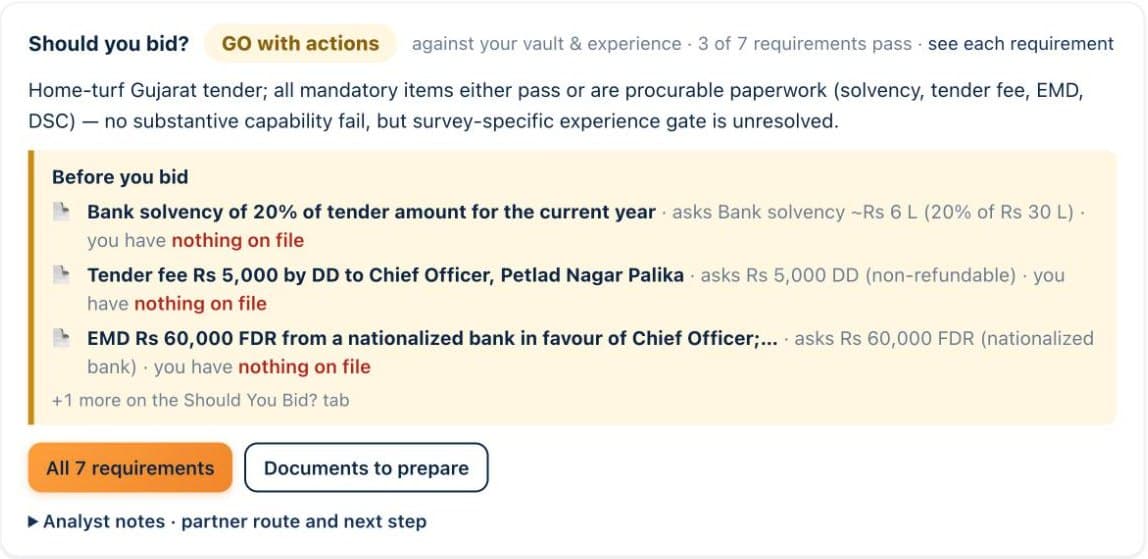
Each eligibility clause becomes a row, and each row is checked against facts taken from your own vault documents. A row is in one of three states: Meets, Does not meet, or Needs input.

Every row shows which document the fact came from and which page, so you can verify it in seconds. Needs input means a document or value is missing. It never forces a No-Go. You add the missing item and the verdict updates.

Should you bid card on a tender overview showing a GO with actions verdict and the items to prepare before bidding
The verdict card on a tender overview. Each item names what the tender asks and what is on file.
STEP 05

Winners and competitors for that department

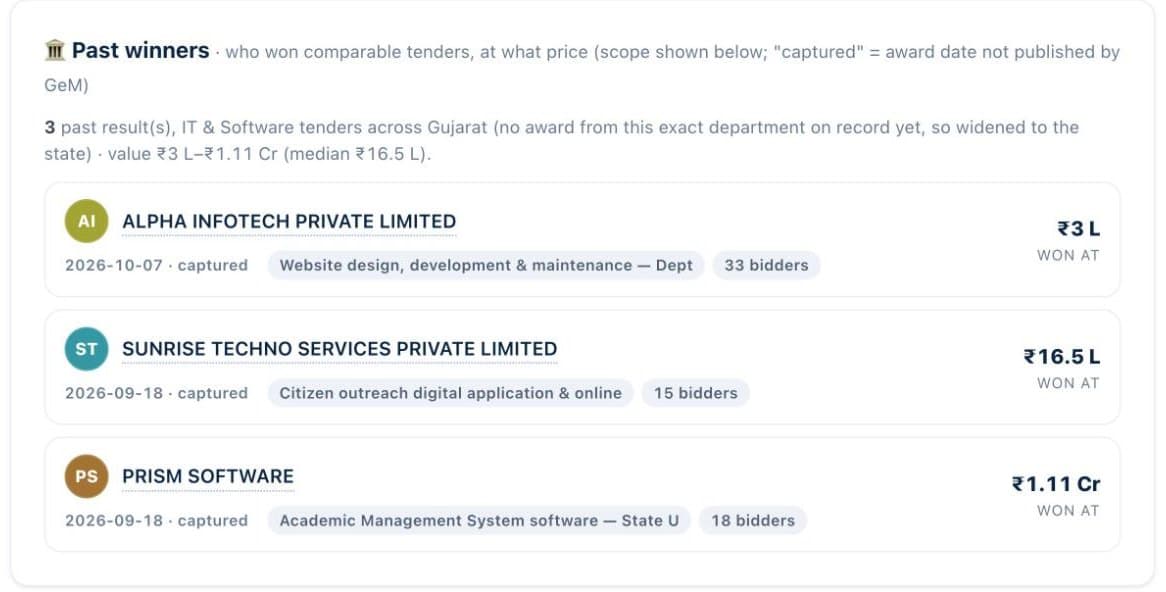
The winners and competitors tab shows past awards for the same department, the bidders most likely to compete with you, and a win-chance estimate with its confidence. It also shows an L1 and floor price band built from comparable awards.

Only recorded awards are used, and only from the same sector, so you can think about your quote with real history in front of you rather than a guess.

Past winners list showing three comparable awards with winning firm, scope, number of bidders and the price they won at
Past winners for comparable tenders, with the award price and the number of bidders. Firm names are replaced here.
STEP 06

Generate the bid pack

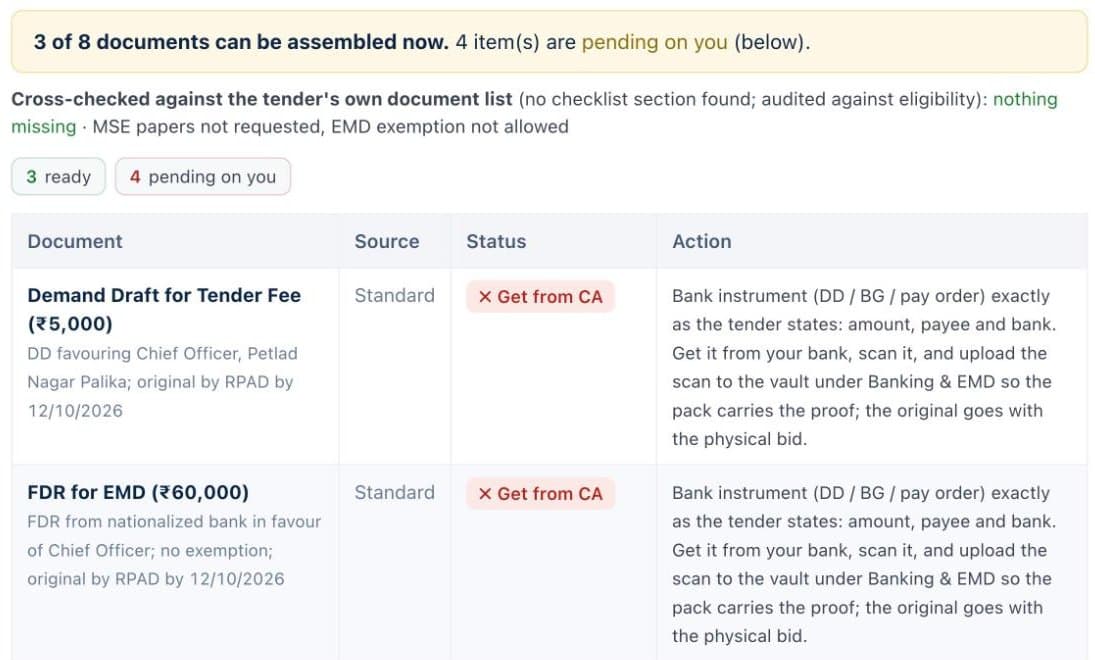
The bid pack generates the annexures and declarations on your company letterhead, in the order the portal asks for uploads. It adds the signed set and gives you everything as one zip.

For tenders that also need physical copies, you get a checklist of what to print, sign and seal. If something is missing, the pack flags it instead of assuming. The bid pack is part of the Win plan.

Bid pack document checklist showing which documents are ready, which are pending, and what to do for each
The document checklist behind the bid pack: ready, pending on you, and what to do for each.
Also included

More that happens behind the six steps

Short notes on the parts of the product that save the most time.

Scope and cost estimate study

Work packages, crew and timeline are laid out, and a BoQ-based floor is turned into a recommended range. Price risks are called out separately: how GST is treated, whether rates can escalate, money held back during the defect-liability period, and swings in material prices.

Tailor-to-us redlines

Suggested changes to the buyer’s terms, ready to raise at the pre-bid meeting.

Experience vault matching

Your work orders and completion certificates are matched automatically to the similar-work clauses in a tender.

Corrigendum auto-fetch

When a buyer issues a corrigendum, it is fetched and the tender is analysed again, with the changes highlighted.

Analyse from any link or bid number

Paste a tender link or a GeM bid number and get the same analysis, even if the tender was not in your daily list.

Empanelment and EOI feed

Empanelment notices and expressions of interest appear in their own feed, so they are not buried under supply tenders.

Cross-portal deduplication

A tender published on more than one portal appears once in your list.

Bid-end urgency colours

Critical means under 48 hours to bid end. Urgent means under 7 days.

BoQ from multi-tab Excel

Bills of quantities are extracted from Excel files with many tabs, so the cost study starts from the buyer’s own items.

Quick preview in about a minute

A first preview of a tender arrives in about a minute, before the full analysis finishes.

The daily routine

What a normal morning looks like

Once the profile and vault are set up, BidShakti fits into a short daily habit.

The 7 AM digest

The email digest lists the day’s matched tenders with closing dates and values. Read it with your first cup of tea and decide which ones deserve a closer look.

Deadline reminders

For tenders you are pursuing, the app reminds you three days before the bid end date (T-3) and again one day before (T-1). Late submissions are the most avoidable loss in tendering.

One decision per tender

Open a tender, read the verdict, check the price band, and either move to the bid pack or drop it. The routine takes minutes per tender, not hours.

Honest limits

What we do not do

We do not submit a bid on your behalf. You upload and submit on the portal with your own DSC, unless you choose BidShakti Assist, where our team does the submission work with you.

We do not guarantee a win. A Go verdict means your documents meet the stated conditions. A price band shows what comparable awards looked like. Winning still depends on your quote, your technical response and the evaluating committee.

We do not invent facts. If your vault does not contain a document, the row says Needs input. If there are no comparable awards, there is no band. Read more on the Go/No-Go engine, winners and competitors and the bid pack, or see pricing.

Your next tender is already in here.

Start the 7-day free trial, set up your company profile once, and get tomorrow’s matches with a decision attached.

Start free trial →